Member guide · Open to everyone
How your member profile works
Every member of the Lifestyle Entrepreneur Club has a profile on this website: a card on the Explore Businesses directory and a page of their own that you can share. This guide shows how to sign in or join, what each part of your profile does, and where it shows.
Sign in, or join
There is no password. Each time, you type your email and we send you a six-digit code.
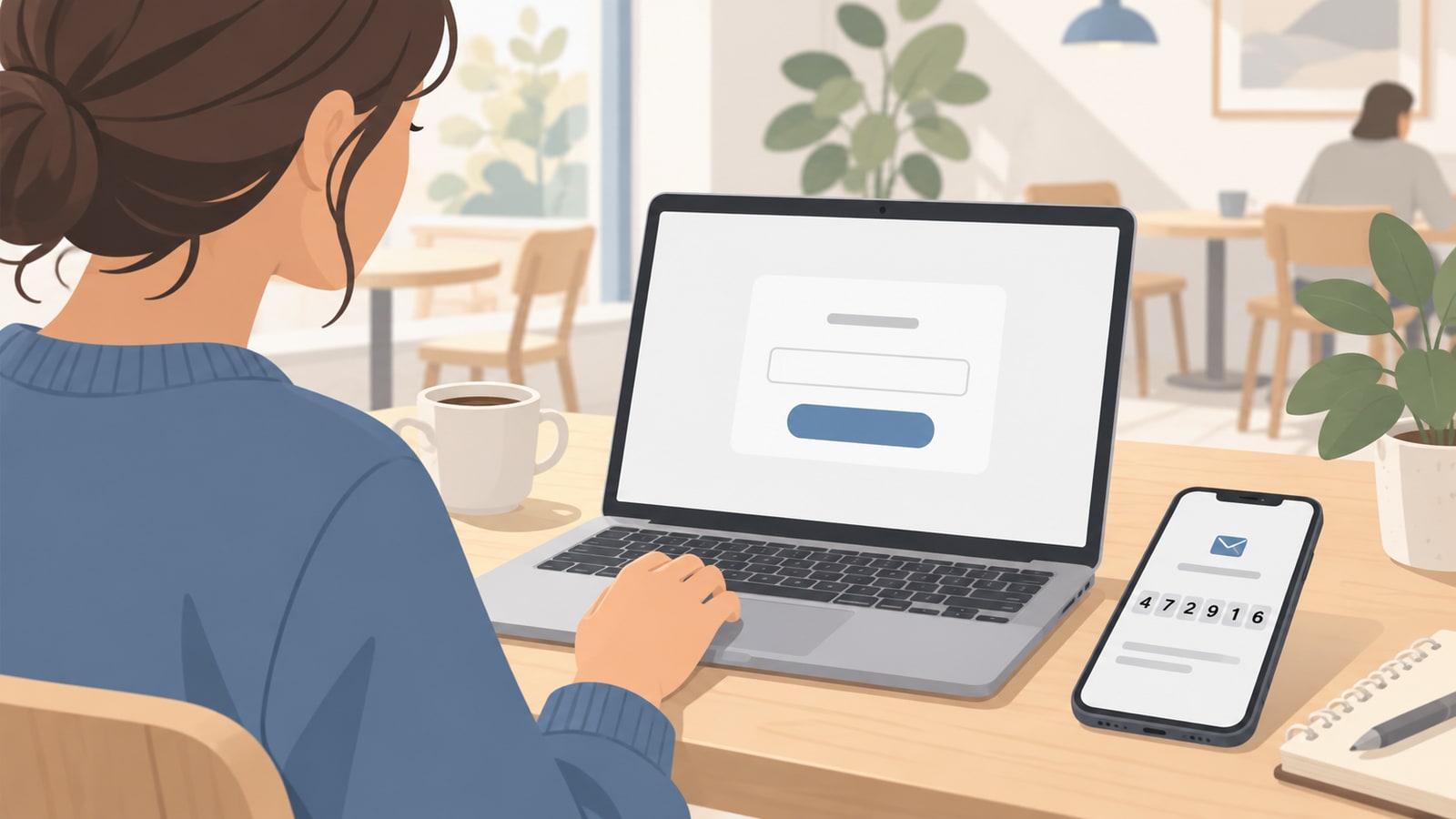
Already a member? Sign in
- Press Members at the top of any page.
- Type the email the club has for you and press Email me a sign-in code.
- Type the six-digit code from the email and press Sign in. The code works for 10 minutes.
You land on My Profile. You stay signed in on that browser for a month, until you press Sign out.
New to the Lifestyle Entrepreneur Club? Join
- Press Members at the top of any page, then New here? Join the club.
- Type your email and press Email me a sign-in code, then type the code.
- Fill in your profile (see what each part does below). You need your name, your business or venture name, a short bio, a theme and a profile photo before you can send it.
- Press Send for approval.
- The committee sees your profile straight away. When they approve you, you are a member and your profile goes on the website.
- If the club charges a fee to join, the committee tells you how to pay after they approve you.
While you wait, you can sign in and keep editing your profile. The top of My Profile always says where things stand.
What each part of your profile does
My Profile is one page. Fill it in and press Save Profile at the bottom (or Send for approval the first time). Boxes marked * are needed before you can send it.
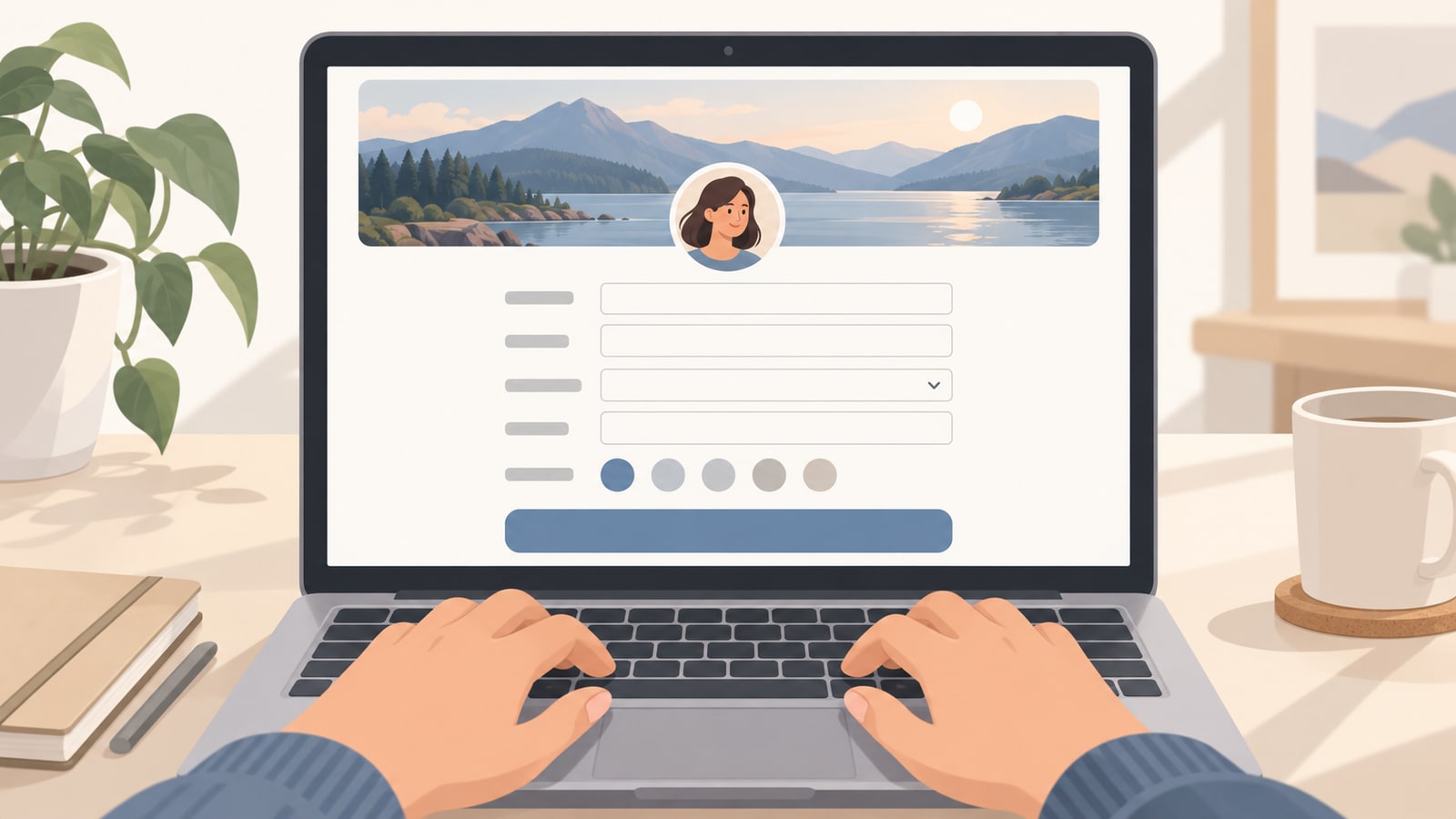
Everything on your profile is public. Anyone looking at the website can see it. Leave a box empty if you would rather not share it. Your sign-in email is never shown.
Your Public Profile
| Box | What it does |
|---|---|
| Your profile address | The end of your page’s web address, after /directory/, such as jane-tan. Pick 3 to 30 lowercase letters, numbers and dashes, and press Save URL. First come, first served. Copy copies the whole address to share. It shows once you have joined. |
Basic Info
| Box | What it does |
|---|---|
| Full Name * | Your name on your card, your page and the committee page. |
| Location | Where you are based, such as a neighbourhood or city. |
| Tagline | One line about you, under your name. |
| Bio * | A few lines about you and what you do. This is what people read on your page. |
| Skills / Interests | Separate them with commas, such as baking, branding, running. Each shows as a small tag. |
Business & Venture
| Box | What it does |
|---|---|
| Business / Venture Name * | The name of your business, project or what you are working on. |
| Theme * | Pick the one that fits you best. People can filter the directory by theme. The club’s themes are Business Efficiency, Kids & Teenage Development, Holistic Growth and Joyful Living. |
| Personal Website | Your own website. Type it without https://. |
| Business / Product URL | Your business’s website, or a page where people can buy from you. |
Social Links
| Box | What it does |
|---|---|
| Public Contact Email | An email people can write to from your page. It can be different from your sign-in email, which is never shown. Leave it empty to show none. |
| LinkedIn, Instagram, TikTok, Facebook, Twitter / X | Type only your handle or username, such as janetan, not the whole link. Each becomes a button on your page. |
| Your 8-digit mobile number. People can tap it to message you on WhatsApp, so only fill it in if you are happy for anyone to. |
My Motivation for Joining
A few lines on why you joined. If you are on the committee, it is shown on the Committee page.
Your two photos
| Photo | What it does |
|---|---|
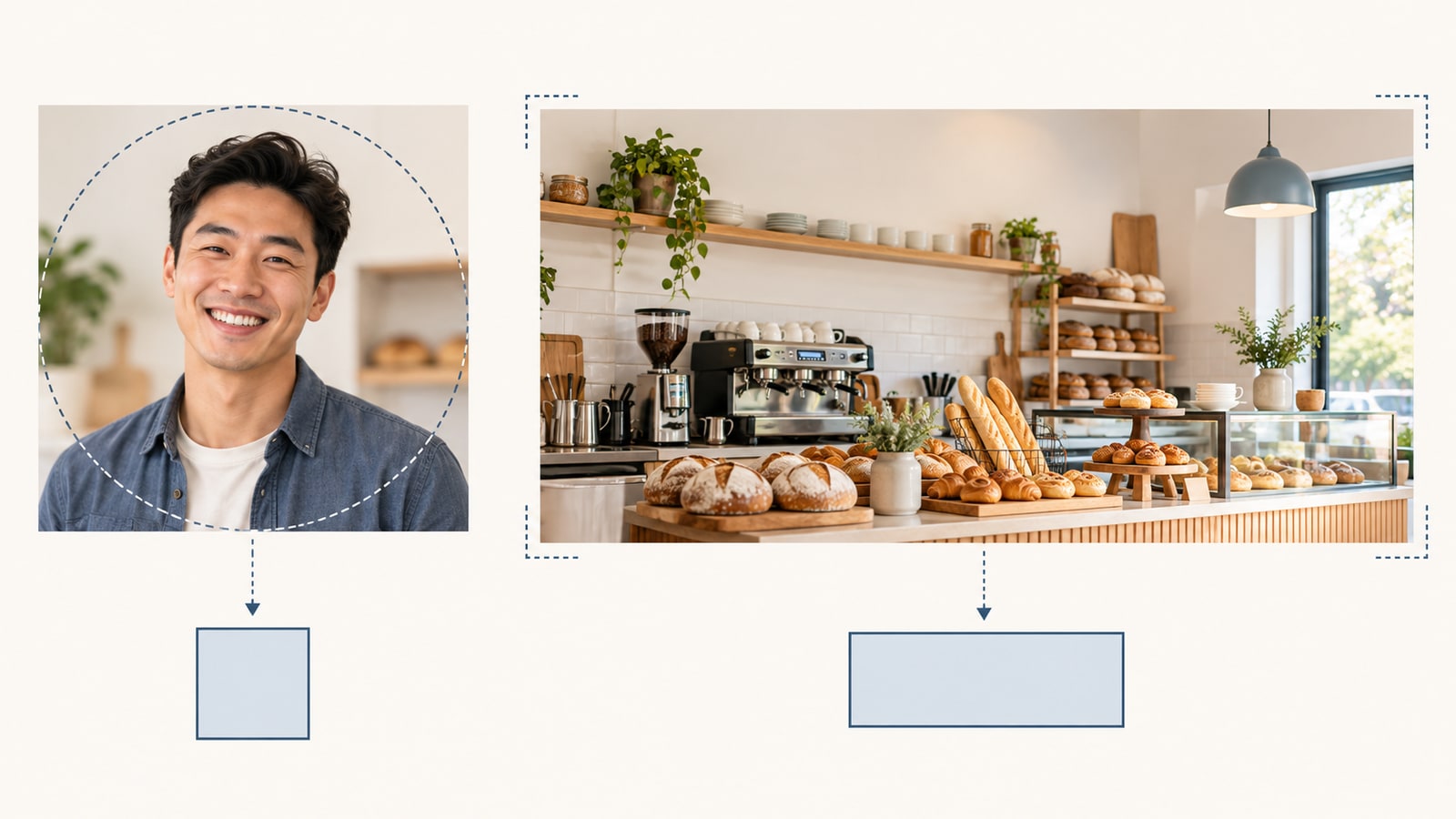
| Profile Photo * | A clear photo of your face, shown round on your card and your page. Square works best (400 × 400). |
| Cover / Banner Photo | A wide picture across the top of your page and on your directory card, such as your shop, your work or your product. Landscape works best (1200 × 675). No photo? Press Copy AI photo prompt and paste it into ChatGPT, Gemini or another picture-making AI to make one. |
Press Choose Photo to add one and Remove to take it off. It is cut to the right shape from the middle and made the right size for you, so keep what matters in the centre of the photo.
“Already Launched” and “Ideas Brewing”
Each profile on the directory shows as Already Launched or Ideas Brewing. You do not choose it: it is worked out from what you have filled in. Profiles that are Already Launched are shown first, and the directory can be filtered by it.
To show as Already Launched, fill in all five:
- Full Name
- Bio
- Business / Venture Name
- A website: your Personal Website or your Business / Product URL (one is enough)
- A Cover / Banner Photo
On My Profile, the Profile status box ticks each one as you fill it in, so you can see what is left before you save.
Where your profile shows
Once you are a member, your profile is on the website straight away:
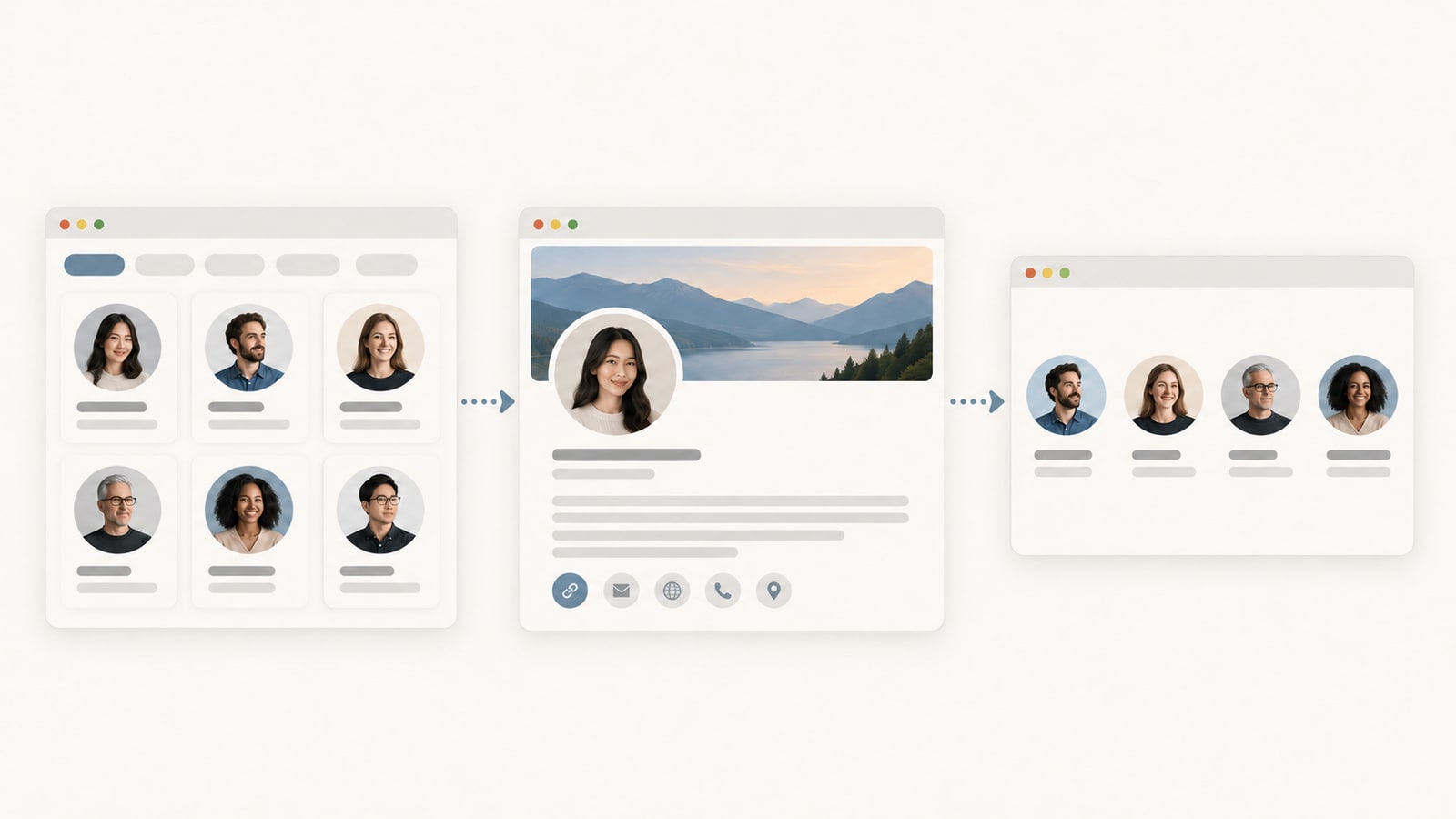
- The Explore Businesses directory: your card, with your photo, name, business and theme. People can search it and filter it by theme.
- Your own page: everything you filled in, at your profile address. Share it like a business card.
- The home page, if the committee features you.
- The Committee page, if you are on the committee.
Before you are approved, your profile is not on the website at all. Only you and the committee can see it.
What the committee decides
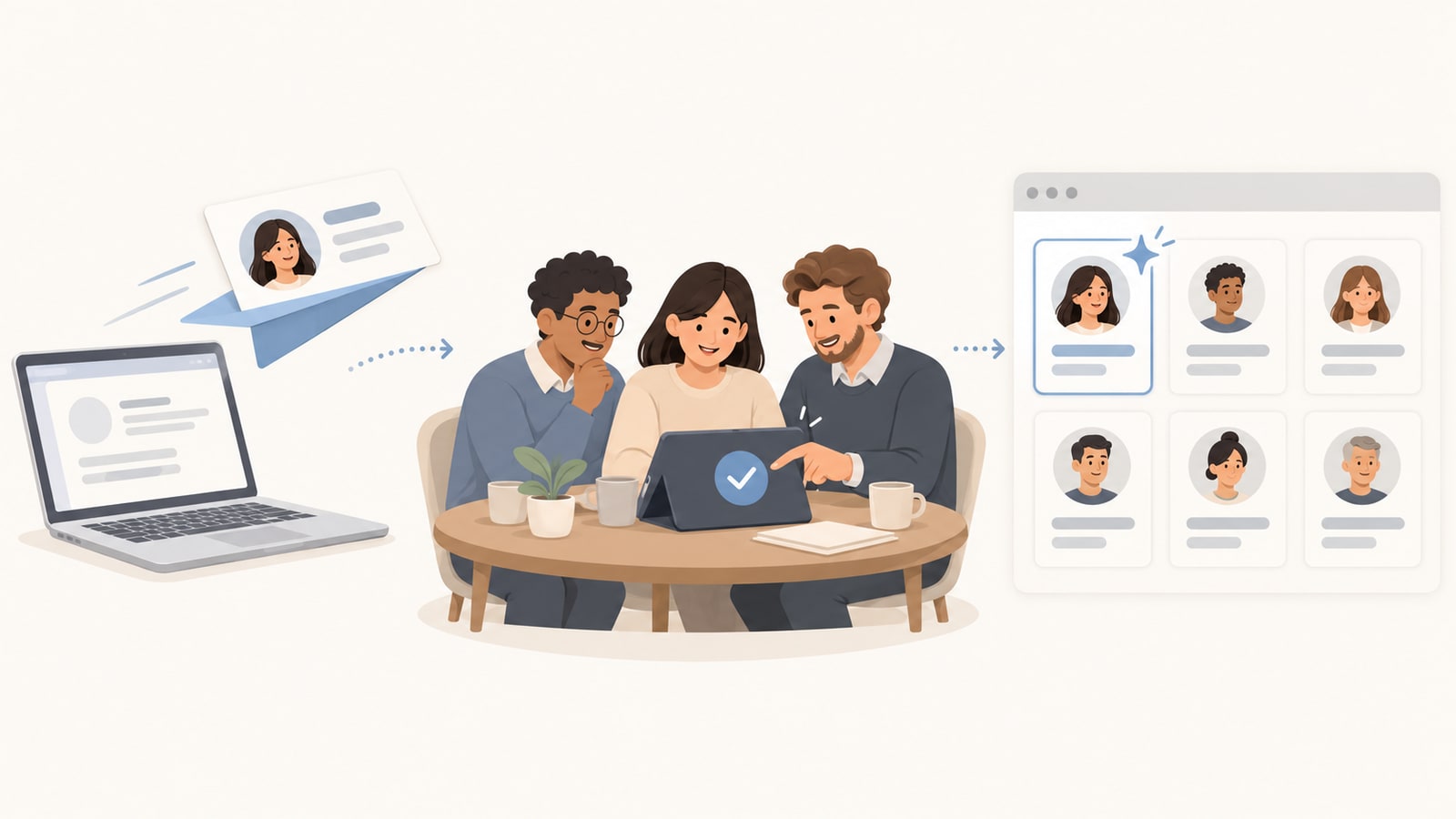
You fill in your profile. Some things only the committee can do:
- Approve you as a member.
- Feature you, so you are shown first and on the home page.
- Put you on the Committee page, with a title such as Chair or Treasurer.
- Take a profile off the directory for a while, or fix a photo or a word for you.
- Your membership itself: your fees, your receipts and your member number.
The top of My Profile always says where you stand: waiting for the committee, what to pay, or that your profile has been taken off the directory for now.
Change it later
- Sign in (see above). You land on My Profile.
- Change anything and press Save Profile. It shows on the website straight away; it does not go back to the committee.
- Press view your profile, just above the Save button, to check how it looks and that every link opens.
Questions
- The code did not arrive.
- Look in your spam or junk folder, and check the email is the one the club has for you. Every code we sent you in the last 10 minutes works, so if two arrive, either one is fine.
- I want to sign in with a different email.
- Your sign-in email is the one on the club’s register. Ask the committee to change it, then sign in with the new one.
- Who can see my sign-in email and phone number?
- Only the committee. The website shows only what you type into your profile.
- Can I take my profile off the website?
- Empty any box you do not want shown and save. To come off the directory altogether, ask the committee.
- Why does it say a box is missing when I send it?
- Every box marked * is needed the first time. The message lists the ones still empty.